
Contact Form 7 is the most popular form plugin for WordPress, powering millions of contact forms across the web. If you're using CF7, there's a good chance you want those submissions somewhere more useful than the WordPress admin dashboard — like Google Sheets.
Google Sheets gives you real-time visibility into form submissions, lets you share data with your team without giving them WordPress access, and opens up powerful analysis with formulas like COUNTIF, QUERY, and VLOOKUP.
But connecting CF7 to Google Sheets isn't as straightforward as it should be. In this guide, we'll compare three methods and help you pick the right one.
Why send CF7 submissions to Google Sheets?
Before we get into the how, here's why Google Sheets is worth the setup:
- Real-time visibility. See submissions the moment they arrive without logging into WordPress.
- Easy sharing. Share the sheet with clients, team members, or stakeholders — no WordPress accounts needed.
- Powerful formulas. Use COUNTIF to track submissions by source, QUERY to filter data, or build charts and dashboards.
- No plugin lock-in. Your data lives in Google Sheets, not trapped in a WordPress database that could crash or get hacked.
Method 1: CF7 Google Sheet Connector Plugin (Free, But Risky)
The CF7 to Google Sheets connector plugin is one of the more popular options. It connects directly to the Google API from your WordPress site.
How it works
- Install the plugin from the WordPress plugin directory.
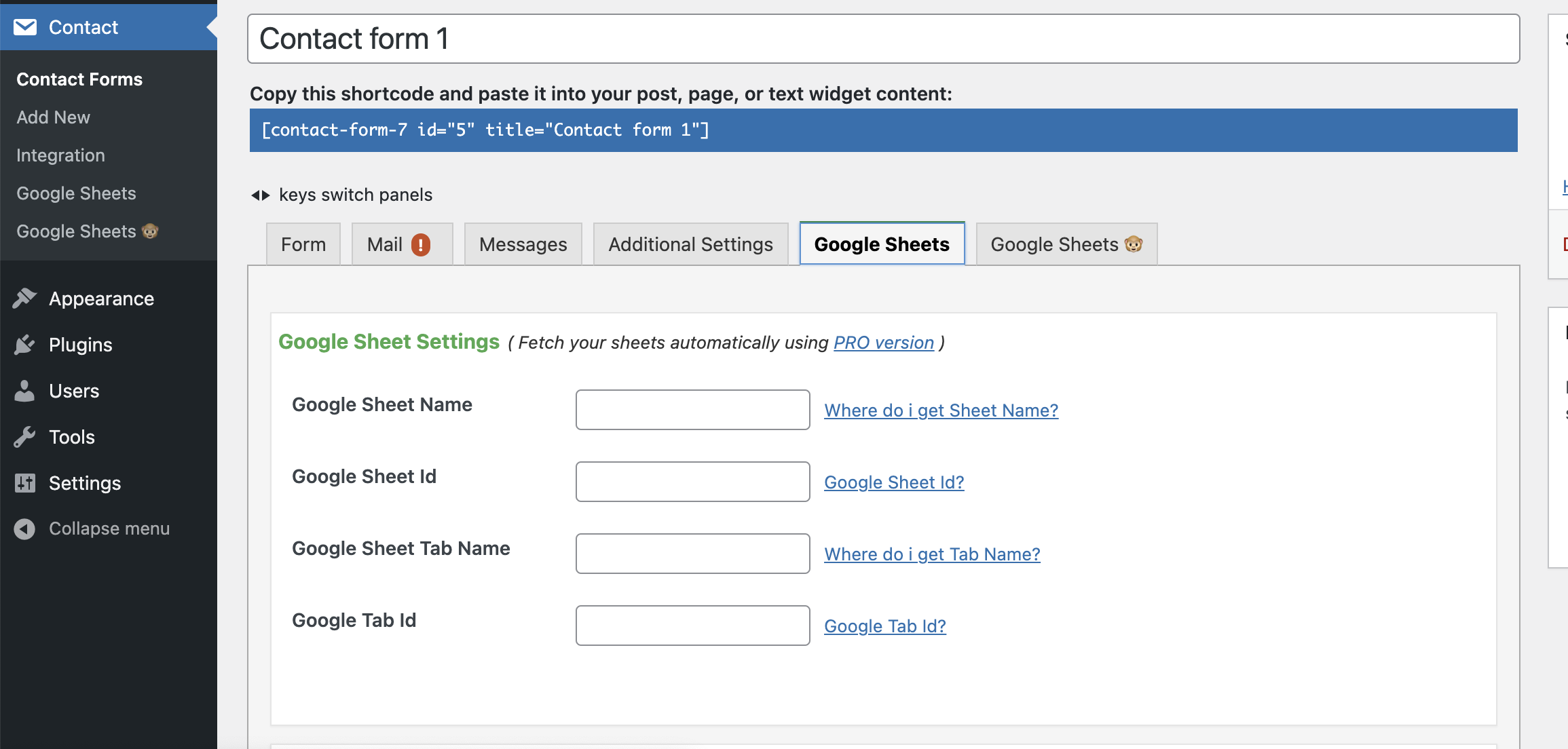
- Authenticate with your Google account by pasting API credentials (Client ID, Client Secret, etc.) into the plugin settings.
- Create a Google Sheet and link it to your CF7 form.
- Map your form fields to spreadsheet columns.
The security problem
This is the method we recommend against. Here's why:
The plugin requires you to paste your Google API credentials directly into your WordPress database. WordPress sites are frequent targets for hackers — they run on shared hosting, use dozens of plugins (any of which could have vulnerabilities), and store everything in a single database.
If your WordPress site is compromised, an attacker gets your Google API credentials. That means they could potentially access all data in your Google Drive — not just the one spreadsheet you linked.
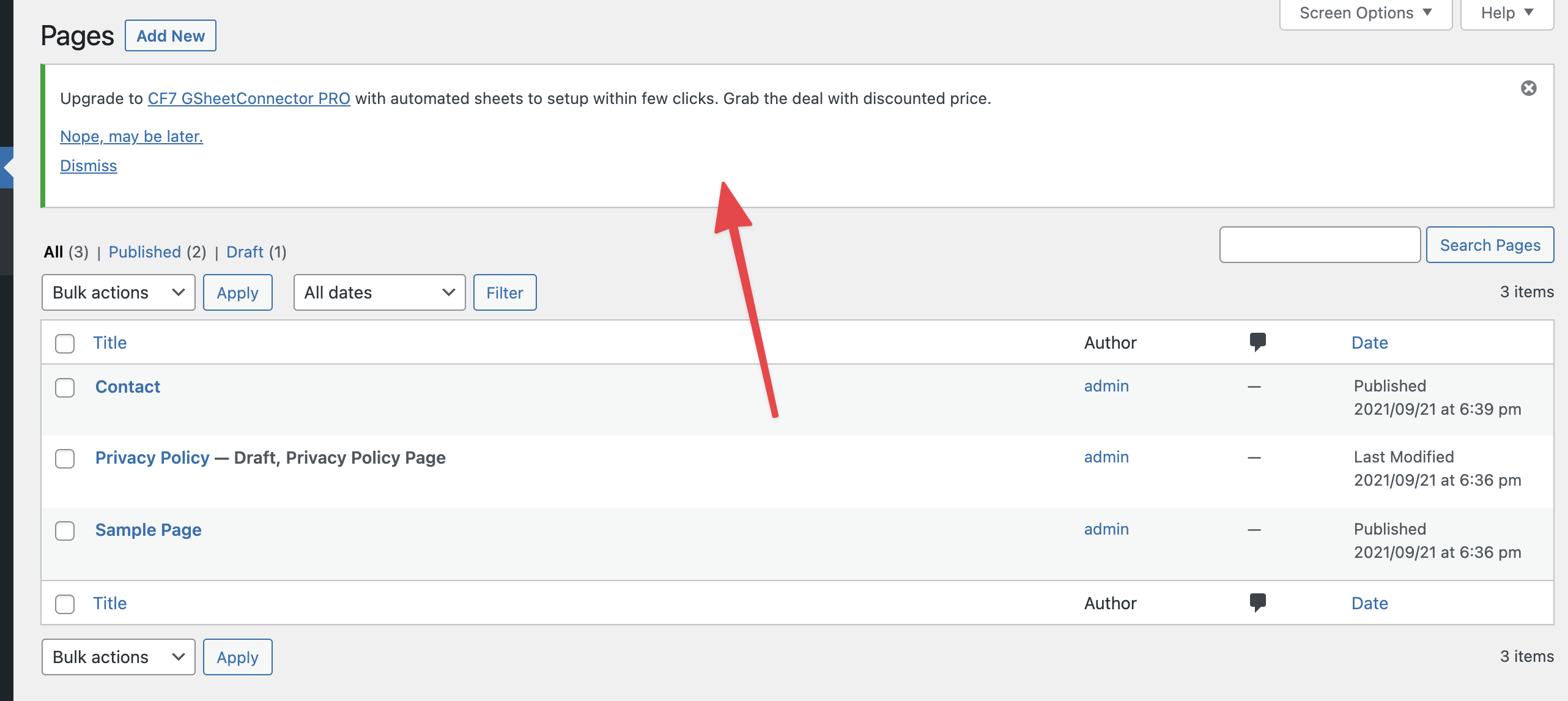
We also found the plugin's interface cumbersome, requiring you to copy values from four different places in Google to make a single connection. And the upgrade notices appear on every page in the WordPress dashboard.
Pros:
- Free to use
- No external service required
- Works directly within WordPress
Cons:
- Major security risk: Stores Google API credentials in WordPress database
- Cumbersome setup requiring multiple copy-paste steps
- Intrusive upgrade notices throughout WordPress admin
- If WordPress is hacked, your Google account is exposed
Method 2: Zapier (Works, But Expensive)
Zapier can connect almost anything to anything, including CF7 to Google Sheets. It works by polling your WordPress site for new submissions and then writing them to a sheet.
How it works
- Create a Zapier account.
- Set up a "Zap" with CF7 as the trigger and Google Sheets as the action.
- Install the Zapier WordPress plugin or use webhooks.
- Map your form fields to sheet columns.
The cost problem
Zapier's free tier is extremely limited — 100 tasks per month with a 15-minute polling delay. For any real usage, you're looking at:
- Starter: $19.99/month for 750 tasks
- Professional: $49/month for 2,000 tasks
That's $240-$600 per year just to connect a form to a spreadsheet. And because Zapier polls rather than pushing in real-time, there's always a delay before submissions appear in your sheet.
Pros:
- No credentials stored in WordPress
- Connects to hundreds of other services
- Reliable infrastructure
Cons:
- Expensive: $20+/month for real usage
- Not real-time: 5-15 minute delay on most plans
- Another tool to manage and pay for
- Free tier is too limited for most sites
Method 3: Sheet Monkey (Recommended — Secure, Instant, Free Tier)
Sheet Monkey released a CF7 plugin specifically designed to solve the security and usability problems of other methods.
How it works
- Create a free Sheet Monkey account and link your Google Sheet.
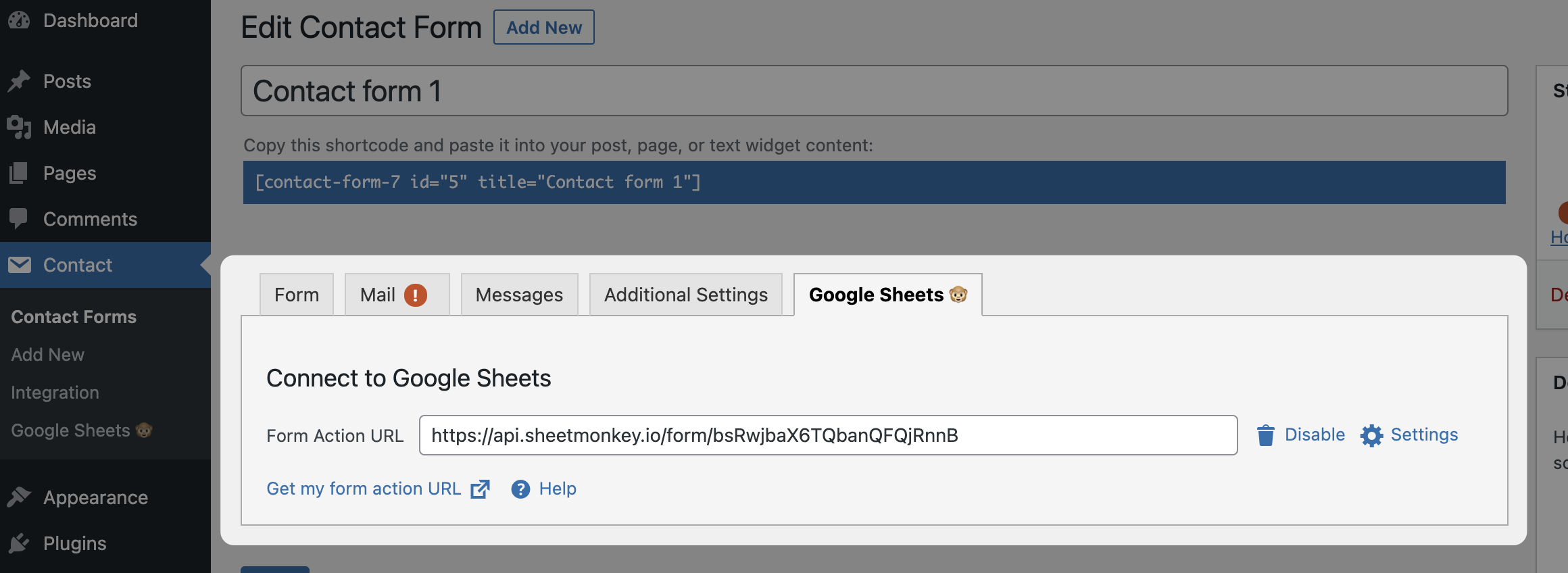
- Copy your Sheet Monkey form endpoint URL.
- Install the Sheet Monkey CF7 plugin in WordPress.
- Paste the endpoint URL into your CF7 form settings. Done.
Why this method is the most secure
Sheet Monkey handles the Google connection in its secure cloud. Your WordPress site only stores the Sheet Monkey endpoint URL — which is write-only. That means:
- If your WordPress site is hacked, attackers get a URL that can only add rows to one specific sheet. They cannot read your data, access your Google Drive, or do anything else.
- Your Google credentials never touch WordPress. They stay in Sheet Monkey's secure infrastructure.
- Write-only by design. The endpoint can never read from your sheet, only write to it.
This is fundamentally different from plugins that store Google API credentials in your WordPress database.
Works with CF7's custom form tags
Sheet Monkey works with all of CF7's form tag types — text fields, email fields, textareas, checkboxes, radio buttons, file uploads, and more. Your existing CF7 forms work without changes.
Pros:
- Most secure: No Google credentials stored in WordPress
- Simplest setup: One URL to paste, no multi-step Google API configuration
- Instant: Submissions appear in your sheet immediately (no polling delay)
- Free tier: 100 submissions per month at no cost
- No adware: Clean plugin with no upgrade nags in your dashboard
Cons:
- Requires a Sheet Monkey account (free tier available)
- 100 submissions/month on free plan (unlimited plans available)
Comparison Table
| Feature | CF7 Connector Plugin | Zapier | Sheet Monkey |
|---|---|---|---|
| Price | Free | $20+/month | Free (100/mo) |
| Security | Stores Google credentials in WP | No WP credentials | No WP credentials |
| Setup time | 15-20 minutes | 10-15 minutes | 2 minutes |
| Real-time | Yes | No (5-15 min delay) | Yes |
| File uploads | Limited | Via add-ons | Built-in |
| Autoresponder | No | Via extra Zaps | Built-in |
| Risk if hacked | Google Drive exposed | None | Write-only URL exposed |
Setting Up Autoresponder Emails
Once your CF7 submissions are flowing into Google Sheets, you might want to send automatic confirmation emails to people who submit your form. Sheet Monkey has this built in — check out our guide on setting up autoresponder emails.
Frequently Asked Questions
Can I use Sheet Monkey with forms other than CF7?
Yes. Sheet Monkey works with any HTML form, including WPForms, Gravity Forms, and custom forms. The CF7 plugin just makes the setup even easier.
Is the CF7 connector plugin safe to use?
We don't recommend it. Any plugin that stores Google API credentials in your WordPress database creates a security risk. If your site is compromised, those credentials could give attackers access to your Google Drive.
How many submissions can I send for free?
Sheet Monkey's free tier includes 100 submissions per month. For higher volume, check our pricing page.
Can I track UTM parameters from my WordPress forms?
Yes. You can add hidden fields to your CF7 forms to capture UTM parameters and send them to Google Sheets. See our guide on tracking UTM conversions in Google Sheets.
Get Started
Skip the plugin headaches. Connect CF7 to Google Sheets in 60 seconds with Sheet Monkey — free for up to 100 submissions/month.